E-invoicing connector help
Administration and troubleshooting
Every parameter you own, every scheduled job you run, every recovery action available when a row does not progress, and the logs you use to find out why.
Written for: E-invoicing administrators and troubleshooters
This guide is for the people who keep the e-invoicing connector running — the e-invoicing administrator and the e-invoicing troubleshooter. It is a reference, not a walk-through.
It assumes you are already familiar with the day-to-day flows described in the two user guides: Send customer invoices and Receive supplier invoices. Where this guide refers to a button or status those guides already explain, it does not repeat the basics — it focuses on the administration and recovery angle.
Scope. These roles sit above the AR and AP operators. The troubleshooter can recover stuck rows across both queues, run the batch jobs, and read the low-level call log. The administrator additionally owns the parameters, the provider connection, and the secret references.
Roles and access
E-invoicing ships with five purpose-built security roles. They are additive to a user’s standard Finance roles (Accounts receivable, Accounts payable) — you assign an e-invoicing role on top of the user’s normal access, never instead of it.
| Role | What it grants | Who gets it |
|---|---|---|
| e-Invoicing AR user | Operate the outbound queue: queue, send, poll status, archive, open the source invoice and queue row, read outbound rows and logs. | AR clerks and supervisors. |
| e-Invoicing AP user | Operate the inbound queue: fetch, process, reject, process paid and rejected, check settlement, archive, open the target invoice and queue row, read inbound rows and logs. | AP clerks and supervisors. |
| e-Invoicing troubleshooter | Recover stuck rows across both queues — Reset, Relink, Technical reject — run the batch jobs, and read the HTTP call log. Includes AR and AP operational access. Excludes parameter and secret maintenance. | Support / operations. |
| e-Invoicing administrator | Everything the troubleshooter has, plus maintaining the parameters, provider selection, and secret references. | A named, segregated administrator account. |
| e-Invoicing inquiry | Read-only access to both queues, the queue and job logs, and the parameters. No operate, batch, or HTTP-log access. | Auditors, read-only stakeholders. |
Why the split. The troubleshooter can recover rows but cannot change how the system is wired — provider selection and the Key Vault secret names are the administrator’s alone. This keeps the ability to rotate credentials or repoint the provider in a small, audited group, while letting a wider support team unstick day-to-day rows.
The roles are built from fine-grained privileges — roughly one privilege per button — so access can be tuned by adding or removing a single privilege without rewriting a role. The full privilege, duty and role catalogue is in the Security and operations reference; this guide stays at the role level.
The setup you own — E-invoicing parameters
Everything the connector needs is on one screen: Dr Dynamics e-invoicing → Setup → E-invoicing parameters. It is organised as a set of vertical tabs down the left.
One row, per legal entity. Parameters follow the standard Finance pattern — a single parameter record per company, created automatically the first time the form is opened. Open the form in the legal entity you want to configure.
General tab
Three groups.
Default configuration
| Field | What it controls |
|---|---|
| Default e-invoice provider | The provider used for all outbound and inbound calls. The connector class is resolved from this value, so switching provider is a setting, not a code change. Leave it unset (None) to fall back to the default connector. |
| Reset cooldown (minutes) | How long a row must have been sending before a troubleshooter is allowed to Reset it. The safety margin against resetting a row whose network call is still legitimately in flight. Must be at least 1. Falls back to 60 if left blank. |
| Auto-queue e-invoices on posting | When on, posting a sales or project invoice automatically creates an outbound queue row — but only for customers whose standard e-Invoice flag is set. When off (default), rows are queued only via the Send e-invoice button. |
Stuck record reprocessing
| Field | What it controls |
|---|---|
| Auto-reprocess stuck rows | When on, the outbound Send and inbound Process batch jobs also pick up rows that have been Processing longer than the stuck threshold and rerun them — unattended recovery. When off (default), stuck rows must be reset by hand. |
| Stuck threshold (minutes) | How long a Processing row may sit before another worker (or the auto-reprocess job) may reclaim it. Falls back to 30 when blank. This field is only editable when Auto-reprocess stuck rows is ticked, but the threshold is also used by the manual claim and recovery path regardless. |
The two timers are different on purpose. Stuck threshold answers “when is a Processing row abandoned and safe to reclaim?” (default 30 minutes). Reset cooldown answers “how long before a human is allowed to force a reset?” (default 60 minutes). Reset is deliberately the more conservative of the two.
Clean up references on delete
| Field | What it controls |
|---|---|
| Maintain outbound source-record link | When on, deleting a source customer or project invoice journal nullifies the source link on every outbound queue row that pointed at it, so Open source record fails cleanly instead of pointing at nothing. |
| Maintain inbound target-record link | The inbound twin: deleting a pending vendor invoice nullifies the target link on every inbound queue row that referenced it. |
Inbound ER configuration tab
How inbound vendor invoices are stored and imported.
| Field | What it controls |
|---|---|
| Inbound DocuType | The document type used to tag the attachment created when an inbound message body is stored on the queue row. |
| Inbound ER model mapping | The Electronic Reporting model mapping that imports the inbound UBL XML into a pending vendor invoice. Picked from the ER mappings configured for the vendor invoice import. |
| Inbound fetch page size | The maximum number of messages requested from the provider per Get messages call. 0 uses the default of 30. |
Outbound ER configuration tab
Four document types, each with a format mapping (which produces the XML) and a DocuType (which tags the attachment). All four must be configured for the corresponding document type to generate.
| Document type | Fields |
|---|---|
| Sales invoice | ER format mapping + DocuType |
| Sales credit note | ER format mapping + DocuType |
| Project invoice | ER format mapping + DocuType |
| Project credit note | ER format mapping + DocuType |
A missing mapping fails the Generate step, clearly. If a document type’s ER format mapping or DocuType is blank, the Generate step fails with a labelled message naming exactly which setting is missing — “Outbound ER format mapping is not configured for this document type…” — not a generic error. So a failed-to-generate row almost always points straight back to this tab.
Provider connection tab
The connection to the e-invoicing network. The tab is labelled for the active provider, because the provider is parameter-driven.
| Field | What it controls |
|---|---|
| Provider base URL | The root URL of the provider’s REST API. Operation paths are appended to this root. |
| Username (secret name) | The name of the Key Vault secret holding the account username — not the value. |
| Password (secret name) | The name of the Key Vault secret holding the account password. |
| API key (secret name) | The name of the Key Vault secret holding the API key. |
| Test connection (button) | Calls the provider with the current credentials and reports success or the exact failure text (HTTP status, provider error code, and reason). |
Secrets are referenced, never stored here. The three credential fields hold the names of Azure Key Vault secret entries, configured under Key Vault parameters, not the secret values. The connector resolves the live value from Key Vault at call time, so rotating a credential means updating the Key Vault entry — you do not re-enter anything here. This is why the fields are labelled “secret name”.
Setting up the connection
- In Key Vault parameters (standard Finance), create secret entries for the provider username, password, and API key, pointing at your Azure Key Vault.
- On the Provider connection tab, set the base URL and pick each secret name from the lookup, which lists the Key Vault entries.
- Click Test connection. A green result confirms the credentials resolve and the provider answers. A red result shows the composed failure reason — use it to tell a wrong URL from a wrong secret from a provider-side error.
Full parameter reference
| Parameter | Default | Change it when… |
|---|---|---|
| Default e-invoice provider | None (fallback connector) | Onboarding a specific provider, or switching providers. |
| Reset cooldown (minutes) | 60 | Your provider’s send calls are reliably faster or slower than the default window. Never below 1. |
| Auto-queue e-invoices on posting | Off | You want posting to queue e-invoices automatically, and customers are flagged. |
| Auto-reprocess stuck rows | Off | You want the batch jobs to self-heal abandoned Processing rows without a human reset. |
| Stuck threshold (minutes) | 30 | Your happy-path runs legitimately take longer than 30 minutes (rare), or you want faster recovery. |
| Maintain outbound source-record link | — | You want source links cleaned up on source deletion. |
| Maintain inbound target-record link | — | You want target links cleaned up on pending-invoice deletion. |
| Inbound DocuType | — | Required for inbound — set during onboarding. |
| Inbound ER model mapping | — | Required for inbound import — set during onboarding. |
| Inbound fetch page size | 30 | Tuning fetch volume per call. |
| Outbound ER format mapping / DocuType (×4) | — | Required per document type for outbound — set during onboarding. |
| Provider base URL + 3 secret names | — | Required for any provider call — set during onboarding, update on credential rotation. |
Company identifiers
Inbound messages arrive addressed to a receiver identifier (a UUID) rather than to a Finance legal entity. The Company identifiers screen maps each provider receiver UUID to the legal entity that should own those inbound invoices.
| Column | Meaning |
|---|---|
| Legal entity | The Finance company that owns invoices addressed to this identifier. |
| Receiver UUID | The provider-side identifier the message is addressed to. |
| Description | A free-text note. |
An unmapped UUID is skipped, not lost. When Get messages fetches a message whose receiver UUID is not mapped to any legal entity, the message is skipped with a clear log line: “No legal entity is mapped to receiver UUID …”. If inbound invoices for an entity are not appearing, check this mapping first.
Scheduled jobs and how to run them
Most of the connector runs itself through batch jobs. Each job is a menu item you can run on demand or put on a recurring batch schedule. The same business logic backs the manual buttons and the batch jobs, so anything a job does, an operator can also trigger by hand on a single row.

The job catalogue
| Job (menu item) | Queue | What it does | Suggested cadence |
|---|---|---|---|
| Send pending outbound e-invoices | Outbound | Generates and sends every Awaiting transfer row, and with auto-reprocess on, stuck Processing rows. Carries the Send to provider toggle. | Every few minutes during business hours. |
| Poll invoice status (batch) | Outbound | Refreshes the External status of Sent rows that are still being tracked. | Hourly, or per your delivery-SLA needs. |
| Get inbound e-invoices | Inbound | Fetches new message headers from the provider into Received rows. | Every few minutes. |
| Process inbound e-invoices | Inbound | Runs the inbound pipeline (Fetch → Import → Link → Ack) on Received rows into Imported. | Every few minutes, after Get messages. |
| Detect settled inbound e-invoices | Inbound | Marks Imported rows Paid once the posted vendor invoice behind them is fully settled. | Daily. |
| Process paid e-invoices | Inbound | Notifies the provider of payment for Paid rows → Paid notified. | Daily, after settlement detection. |
| Process rejected e-invoices | Inbound | Carries out the refusal consequences and notifies the provider for Rejected rows → Reject notified. | Hourly, or as refusals occur. |
Two toggles you set once. The Send and Process jobs both honour Auto-reprocess stuck rows — turn it on if you want them to recover abandoned Processing rows unattended. The Send job also carries the Send to provider toggle: a scheduled Send job normally runs with it on (generate and transmit); leaving it off would generate-and-hold every row, which is rarely what you want for an unattended job.
Choosing sync vs batch at the dialog
The job dialogs include the standard Run in the background options. Leave Batch processing ticked to schedule a recurring run; untick it to run the job once, synchronously, right now — useful when you are actively recovering and want to watch it finish.
The job log — proof every run happened
Every job run, and every manual multi-row action, writes one summary row to the E-invoice job log (Dr Dynamics e-invoicing → Inquiries → E-invoice job log).
| Column | Meaning |
|---|---|
| Job | Which service ran (Send, Status poll, Get e-invoices, Process inbound, Settlement poll, Process rejected, and so on). |
| Mode | Batch or Synchronous. |
| Started / Ended | Run window. |
| Processed / Succeeded / Failed / Skipped / Held | Per-run tallies. Held is outbound generate-and-hold. |
| Error message | Set if the whole run was cancelled or errored, for example cancelled by user. |
| Batch job ID | The parent batch job, when run as batch. |
| Open batch job (button) | Jumps to the standard Finance batch job for a batch run. Tells you cleanly when a run was synchronous (no parent) or when the batch job has since been cleaned up. |
Where to start a “did the job run?” question. The job log answers “did the 09:00 Send run, and what did it do?” in one row. Use it to confirm cadence and spot a run that processed 0 rows — a sign the queue is empty, or a filter or parameter is wrong — before diving into per-row logs.
Reprocessing and recovery — the full toolkit
This is the heart of the troubleshooter role. The decision tree below maps a stuck or failed row to the right tool.
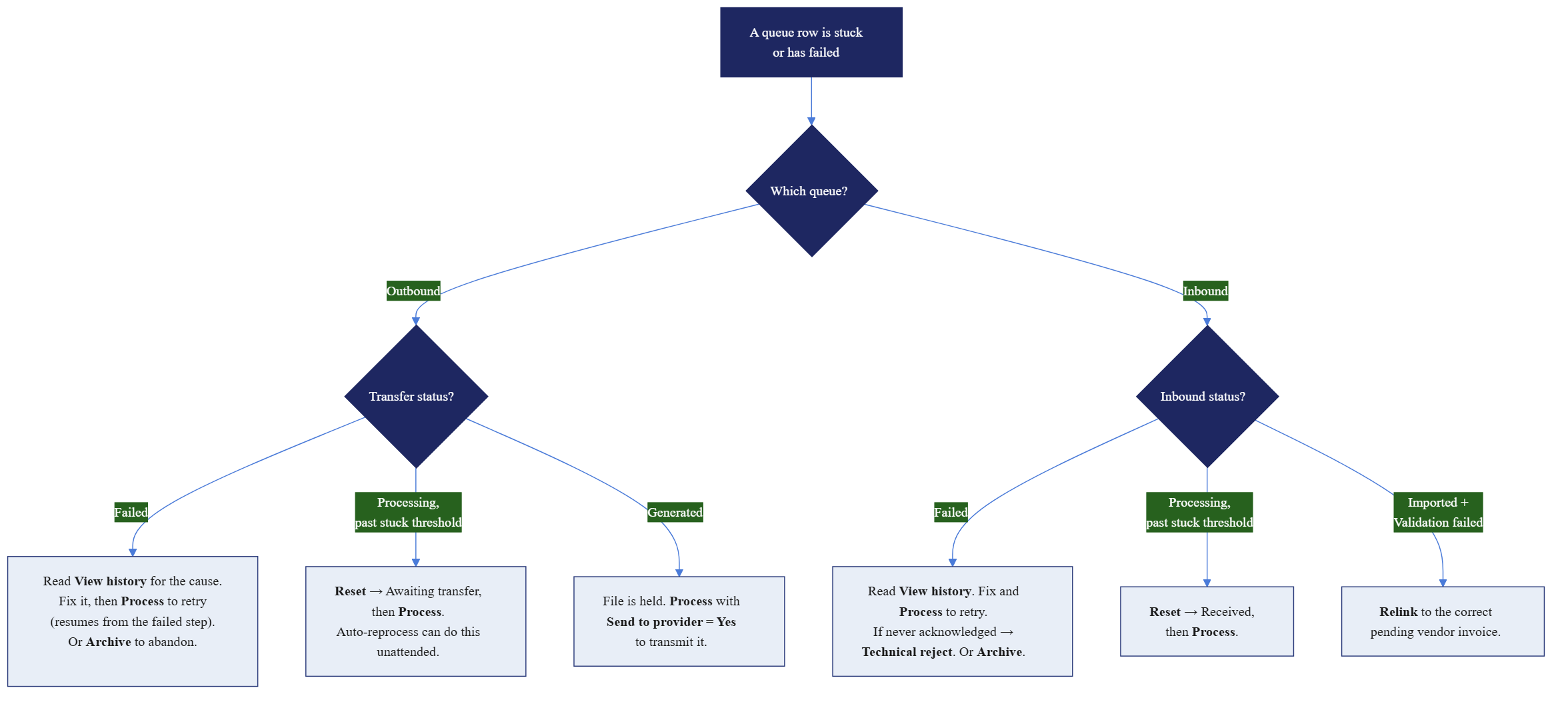
One principle underneath all of it. Status is only ever written by the state machine, and every status-changing action writes an audit row. So every recovery action here is safe to repeat — a reset that races another worker, or a retry of an already-finished row, simply does nothing rather than corrupting state. When in doubt, the safe move is to read View history and act on what it actually shows.
Retry a Failed row (both queues)
The everyday recovery. A Failed row has a recorded reason and an untouched source — nothing was lost.
- Outbound: select the Failed row → Process. The pipeline resumes from the first unfinished step: a file already generated is not regenerated, because the Generate checkpoint is honoured, so only the Send step re-runs. No duplicate files.
- Inbound: select the Failed row → Process. Each step whose checkpoint is already set (Fetched, Imported, Linked, Acked) is skipped, so the pipeline picks up exactly where it stopped.
Read View history first to confirm the cause is actually fixed, for example that you corrected the ER mapping or the provider is back. Otherwise the retry just fails the same way.
Reset a stuck Processing row
A row that has been Processing far longer than any real run has likely been orphaned — an AOS restart or deploy landed between the claim and the network call finishing. Reset is the manual escape hatch.
- Outbound Reset: flips Processing → Awaiting transfer and clears the sending timestamp, but only when the row has been processing longer than Reset cooldown (minutes). The cooldown is enforced on the server, so a stale form cannot bypass it. You are prompted for a Reset reason, which lands in the audit log.
- Inbound Reset: the twin — flips Failed or stuck Processing → Received so the pipeline can re-run, gated by the stuck threshold.
Reset is conservative by design. The confirmation warns that resetting a row whose network call is genuinely still in flight can cause a duplicate submission at the provider. Reset only when you are confident the row is truly abandoned — past the cooldown, no worker active. If you are unsure whether the provider received it, check the HTTP log for that row before resetting.
Let the system self-heal — auto-reprocess
Turning on Auto-reprocess stuck rows in parameters lets the Send and Process batch jobs reclaim stuck Processing rows older than the stuck threshold automatically — the same claim path Reset uses, but unattended. This is the hands-off alternative to manual Reset for environments where occasional orphaned rows are expected, such as frequent deploys. Manual Reset remains available as the immediate, single-row override.
Send a held (Generated) row
A Generated row is a deliberate generate-and-hold: the file exists and is attached but was never transmitted. Scheduled Send jobs do not touch Generated rows — only a manual Process with Send to provider = Yes releases them. This is the mechanism behind the rounding-correction workflow below.
Relink an inbound row (Imported + Validation failed)
When the inbound import cannot confidently match its pending vendor invoice — 0 candidates, or more than one — the Link step degrades to a warning rather than failing, raises the Validation failed flag, and leaves the row Imported. Relink lets you point it at the correct pending vendor invoice by hand. It is enabled only on rows whose link degraded, so a clean 0-match row can still be relinked once the right invoice exists.
Technically reject an inbound row (Failed, never acknowledged)
When an inbound message failed before it was ever acknowledged, Technical reject tells the provider — via a negative callback — that the message could not be processed. The provider then treats it as final and stops re-offering it. Enabled only on Failed rows that were never acknowledged; use it for messages you genuinely cannot import, such as a malformed payload or an unsupported format, rather than leaving them to be re-fetched forever.
Archive — close a row out (both queues)
Archive is the terminal “set this aside” action for a row you will not pursue. It is allowed from any state except Processing, because a row whose call may be in flight must be reset first. Outbound archiving sets a marker flag and leaves the transfer status untouched; inbound archiving folds the close into the status. Archiving requires a reason and is fully audited.
Diagnosing a problem — the three logs
There are three places to look, in increasing order of depth. Reach for them in this order.
1. View history — the plain-language step log
The first stop for “what happened to this row”. View history, on both queues, lists every step the row went through — Claim, Generate, Send, status checks on the outbound side; Claim, Fetch, Import, Link, Ack on the inbound side — each with an Outcome (Succeeded, Failed, Skipped, Held, Started) and a Message. Set Show all logs to Yes to include the internal framing steps, not just the headline events. A failed row’s reason is almost always readable here in one line.
2. View log — the full audit list
View log opens the broader queue-log list for the row — the same entries, in a filterable grid, with the View queue record button to jump back to the row a given entry was written for. Use it when you want to scan many entries or filter across rows.
3. View HTTP log — the raw provider call
When the step log says “the provider rejected it” but not why, the E-invoice HTTP log (Inquiries → E-invoice HTTP log, or View HTTP log from a queue row) is the ground truth: every call to the provider, captured in full. This log is troubleshooter access only.
| Field | What it shows |
|---|---|
| Operation | Which connector call (Send, Get status, Get e-invoices, Get e-invoice, Acknowledge, Reject callback, Get outbound acknowledgement). |
| Method / URL | The HTTP verb and endpoint. |
| Response status | The HTTP status code returned. |
| Request headers / body | What was sent, including the exact payload. |
| Response headers / body | What the provider returned, including its error code and message. |
| Duration (ms) | How long the call took. |
| Exception | Any client-side exception text (timeouts, TLS, DNS). |
| Related record / table | The queue row the call belongs to. |
This is where provider rejections are decoded. A row marked Rejected or Failed with an opaque message becomes obvious here: the Response body carries the provider’s own error code and human-readable reason. Copy that text verbatim when escalating to the provider — it is what their support will ask for.
Common failure modes and fixes
A symptom-to-cause table for the failures you will actually see. The message column quotes the text you will find in the step log or an error.
| Symptom / message | Likely cause | Fix |
|---|---|---|
| “Outbound ER format mapping is not configured for this document type…” | The document type’s mapping is blank on the Outbound ER configuration tab. | Set the ER format mapping and DocuType for that document type, then Process to retry. |
| “Outbound DocuType is not configured for this document type…” | The DocuType is blank for that document type. | Set the DocuType on the same tab and retry. |
| “Inbound ER model mapping is not configured…” / “Inbound DocuType is not configured…” | Inbound parameters incomplete. | Complete the Inbound ER configuration tab and Process the row. |
| “Source journal record … is missing or was deleted.” | The customer or project invoice behind an outbound row was deleted. | The row can no longer generate — Archive it. Enable source-link cleanup to nullify links automatically. |
| Connection test fails; HTTP 401/403 in the HTTP log | Wrong or expired credentials, or wrong secret name. | Update the Key Vault secret value (rotation) or fix the secret name on the provider tab; re-test. |
| “…must be configured … before testing the connection.” | Base URL or a secret name is blank. | Fill the base URL and all three secret names, then test. |
| “No legal entity is mapped to receiver UUID …” | Inbound message addressed to an unmapped identifier. | Add the receiver UUID → legal entity row on Company identifiers; re-run Get messages. |
| Inbound row stuck Imported with Validation failed | Link matched 0 or more than 1 pending vendor invoices. | Relink to the correct pending vendor invoice. |
| Row stuck Processing for a long time | Worker orphaned by a crash or deploy mid-pipeline. | Reset past the cooldown, then Process — or enable Auto-reprocess stuck rows. |
| External status Rejected / Refused / delivery Failed | The customer or network did not accept the invoice. | Read the HTTP log response body for the provider’s reason; correct and reissue. |
| Job log shows a run that Processed 0 | Empty queue, or a parameter or filter excluding rows. | Confirm rows exist in the expected state; check the relevant parameters and the job’s queue. |
A discipline that saves time. Logging is best-effort and never blocks the business flow — an audit-log write that fails will not stop a send. So in the rare case a row’s outcome and its log seem to disagree, trust the row’s status, which is written by the state machine, over a missing log line, and use the HTTP log to reconstruct what actually happened on the wire.
Worked scenario: line-rounding rejection
A concrete, common rejection — and the recommended way to recover it without fighting the automatic jobs.
The problem
An invoice has three lines, each priced at 33.333, each rounded for display to 33.33:
| Line | Raw | Rounded |
|---|---|---|
| 1 | 33.333 | 33.33 |
| 2 | 33.333 | 33.33 |
| 3 | 33.333 | 33.33 |
| Sum of lines | 99.99 | |
| Invoice total | 100.00 |
The line amounts sum to 99.99, but the invoice total is 100.00 — a one-cent reconciliation gap. Many e-invoicing networks enforce a validation rule that the sum of line amounts must equal the document total, so the provider may reject the e-invoice even though the invoice is perfectly valid in Finance.
The recommended recovery
The goal is to transmit a corrected file without the automatic jobs sending the uncorrected one first. The generate-and-hold state is exactly the tool for this: a Generated row is invisible to the scheduled Send job, so once the row is parked there you can edit its file in peace and release it manually.
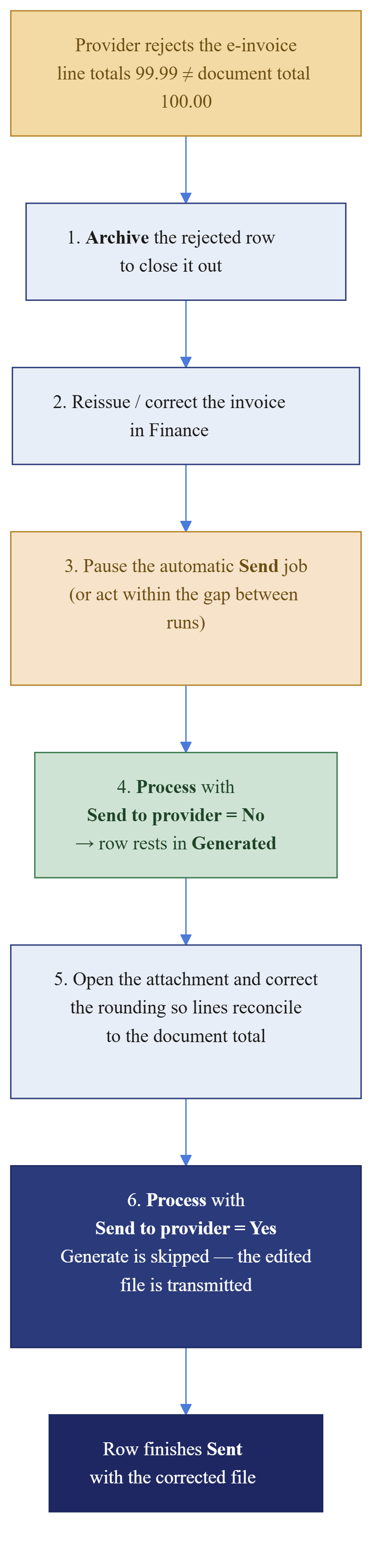
- Archive the rejected row. Close out the e-invoice the provider refused so it no longer clutters the working list. The underlying invoice is untouched.
- Reissue or correct the invoice in Finance through your normal AR process.
- Make sure no automatic Send job runs in the next ~10 minutes. Either pause the recurring Send batch job, or act within the gap between its runs. This is the window in which a freshly Awaiting transfer row could otherwise be grabbed and sent uncorrected. If Auto-queue on posting is on, posting the reissue creates that Awaiting-transfer row immediately — so move straight to the next step.
- Generate the file without sending — generate-and-hold. Select the new row → Process → set Send to provider = No → OK. The row finishes Generated: the file is produced and attached, but nothing was transmitted. From here the scheduled Send job will not touch it.
- Manually adjust the file. Open the attachment and correct the rounding so the line amounts reconcile to the document total. The exact edit depends on your format — typically nudging one line, or adding the rounding adjustment the schema expects. Save the corrected file back as the row’s attachment.
- Push it on the next action. Select the row → Process → set Send to provider = Yes → OK. Because the row already has a generated file, the Generate step is skipped — the pipeline transmits the existing, hand-edited attachment, not a freshly regenerated one. The row finishes Sent with your corrected file.
Why the edit survives. Generate is idempotent: once a row has generated a file, re-processing it does not regenerate. That is precisely what lets you hand-edit the attachment between steps 4 and 6 and be certain the corrected file — not a fresh, still-wrong one — is what goes to the provider. The Send step transmits the latest attachment on the row, so make your correction in place, replacing the attached file, rather than adding a second attachment beside it.
The durable fix is upstream. Hand-editing a file is a recovery action, not a routine. If line-rounding rejections recur, the lasting fix is in the ER format mapping, so the generated XML reconciles by construction, or in the invoice’s rounding setup. Raise that with whoever owns the ER configuration rather than hand-editing every invoice.
Connection and credentials
Testing the connection
The Test connection button on the provider tab is the fastest health check. It resolves the secret names against Key Vault, calls the provider, and reports either success or the exact composed failure (HTTP status, provider error code, and reason). Run it after any credential or URL change, and as the first step when a wave of sends starts failing.
Rotating a credential
Because the parameters hold secret names, not values, rotation is a Key Vault operation:
- Update the secret value in Azure Key Vault. The name stays the same.
- Nothing changes on the parameters form — the connector reads the new value at the next call.
- Click Test connection to confirm the new value resolves.
If you change the secret name — a new Key Vault entry rather than a new value — update the matching field on the provider tab and re-test.
Switching provider
Set Default e-invoice provider to the new provider. The connector class is resolved from that value through the provider factory, so no code change is needed, provided a connector for that provider is installed and its credentials are configured. Run Test connection before relying on it.
When it is not the connector
Some failures originate outside this module. Recognising them saves you chasing the wrong layer:
- Electronic Reporting — a Generate or Import failure whose message points at ER (missing tables, unresolved binding paths, no output produced) is an ER configuration problem. The fix is in the ER format or model mapping, not in these parameters. The connector only runs the mapping you point it at.
- Azure Key Vault — if Test connection fails to resolve a secret, as opposed to the provider rejecting valid credentials, the problem is the Key Vault entry or its access policy, not the e-invoicing parameters.
- Network / TLS — timeouts, DNS, or TLS errors show up as an Exception in the HTTP log with no provider response body. These are environment or networking issues.
- Provider-side — a well-formed call that the provider rejects with its own error code, visible in the HTTP-log response body, is a provider or message-content issue. Escalate to the provider with the operation, URL, status, and response body from the HTTP log.
Glossary
- Claim — the atomic step that moves a row into Processing and marks it owned by one worker, so manual and batch runs cannot double-process it.
- Stuck threshold — minutes a Processing row may sit before another worker may reclaim it (default 30). Drives auto-reprocess and the manual recovery claim.
- Reset cooldown — minutes a row must have been sending before a manual Reset is allowed (default 60). The conservative guard against resetting an in-flight call.
- Auto-reprocess stuck rows — parameter that lets the Send and Process batch jobs reclaim stuck rows unattended.
- Generate-and-hold — processing a row with Send to provider = No, producing the file but leaving the row Generated for a later manual send. Invisible to the scheduled Send job.
- Idempotent step — a pipeline step that does nothing if its checkpoint is already set, so retries never duplicate work. This is the reason hand-edited files survive a re-process.
- Relink — pointing an inbound row at the correct pending vendor invoice when the automatic link was ambiguous.
- Technical reject — telling the provider, via a negative callback, that a failed inbound message cannot be processed.
- Secret name — the name of an Azure Key Vault entry stored in the parameters; the connector resolves the live value at call time.
- Receiver UUID — the provider-side identifier an inbound message is addressed to, mapped to a legal entity on Company identifiers.
- Job log — one summary row per batch or manual run, with per-run tallies; the “did it run and what did it do” record.
- HTTP log — the full request and response of every provider call; the ground truth for decoding rejections.